Work & support5 min read
Sharing a work screenshot? Check these 12 things first
Dashboards, support tickets, and analytics screens are full of names, emails, and internal numbers. A short pre-share checklist.
Published
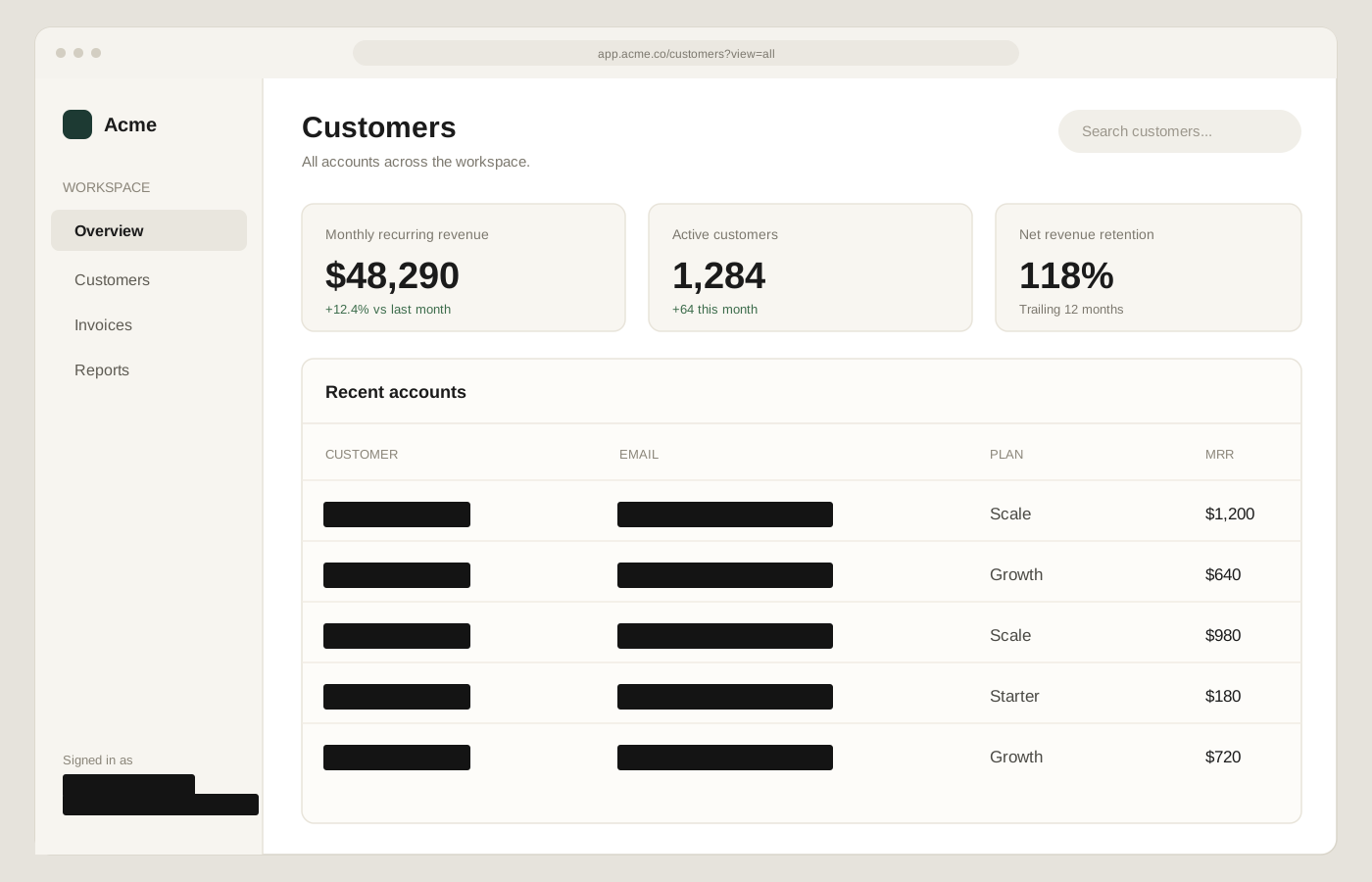
A work screenshot is rarely just a chart. It usually includes a signed-in account, a customer table, a workspace name, and a browser tab — all in the margins.
Support replies, bug reports, and internal documentation all get better with a screenshot. They also get riskier. Customer data can cross a boundary it was never meant to cross, and internal numbers can leave a company network in a PNG.
The 12-point check
- The browser tab title and any pinned tab names.
- The URL bar, including query strings and ticket IDs.
- The workspace or organisation name in the sidebar.
- The signed-in user’s name and email address.
- Customer names and emails in tables or panels.
- Revenue, MRR, contract values, or other commercial numbers.
- Internal project names, ticket IDs, and environment labels.
- Notification toasts and unread-message previews.
- Slack, Teams, or email channel names.
- Avatars and profile photos.
- Timestamps that reveal routines or time zones.
- Other windows visible behind the main app.
Redact for the audience
A screenshot for your own team can show more than one for a public bug report. A screenshot in a customer support thread should contain only what the customer would recognise as their own data. Decide who will see the image before you decide what to hide.
Preserve the point
Redaction is not about making the image useless. Keep the layout, the trend line, the error message, or the row you are explaining. Cover the identifiers around it. If the point is “the third row has the wrong total”, the customer name is not part of the evidence.
A better default
- 1
Capture the app, not the desktop
Use a window screenshot so other tabs and notifications stay out of frame.
- 2
Run Smart detect
Let the on-device scan suggest names, emails, phone numbers, and IDs. Exclude anything irrelevant.
- 3
Cover the margins
Check the sidebar, URL bar, account chip, and any toast. These are the most commonly missed areas.
- 4
Verify before posting
Re-scan the flattened image and open the export at full size. Then attach it to the ticket or thread.
- 5
Make it small enough to send
Long dashboard captures are heavy. Open the size panel, cap the longest edge, and check the measured file size before you attach it.
The habit that matters
The goal is not to redact every screenshot perfectly. It is to make “what is in this frame?” a normal step before sharing. Once the habit is in place, the checklist takes less than a minute.
The short version
- Check tabs, URL bars, sidebars, notifications, and the signed-in account.
- Keep the evidence and remove the identifiers around it.
- Verify the flattened image before it goes into a ticket or thread.
- Measure the export size before you attach a heavy capture.
Put it into practice with a sample image.