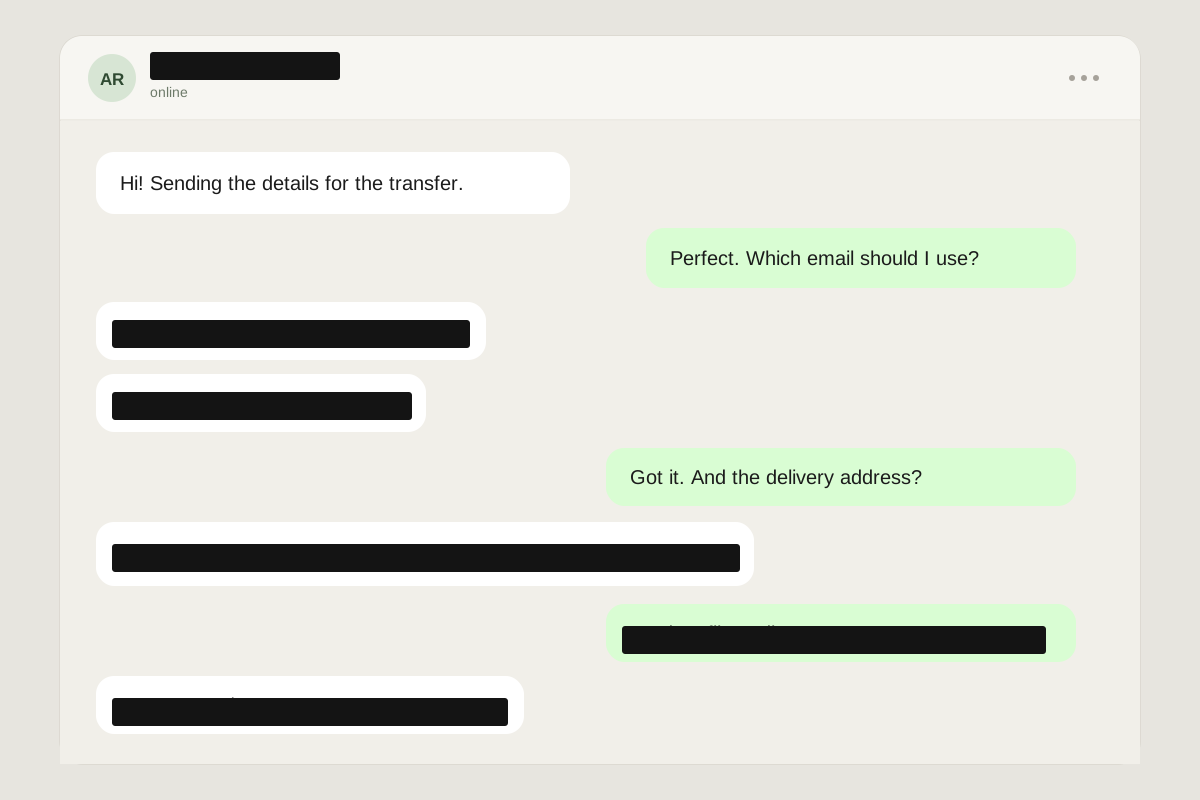
Chats & messages
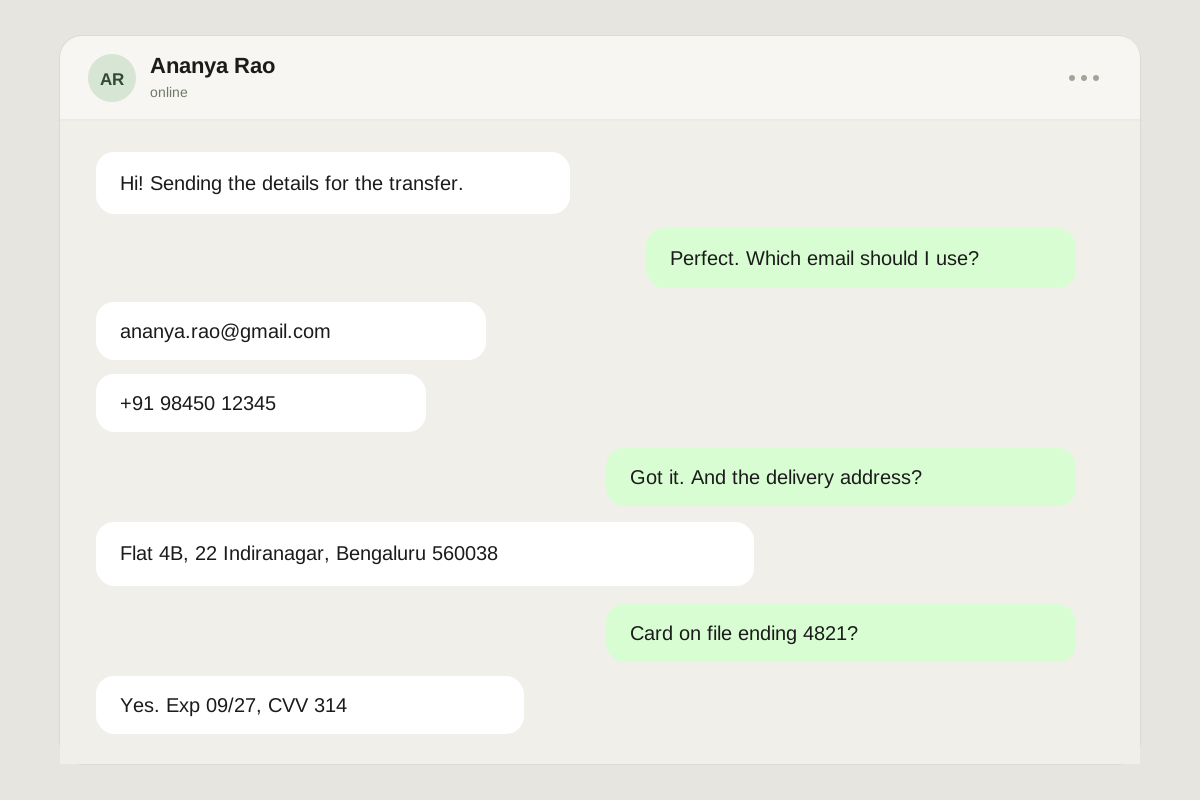
Names, emails, phone numbers, and delivery details tucked into message bubbles.
Image redaction in your browser: hide names, emails, card numbers, and addresses in seconds. Smart detection runs on your device, and every export leaves its metadata behind.
FreeNo accountNo uploadsNo watermark
Paste with Ctrl/⌘ V, drop a file, or choose one. PNG, JPG, WebP, GIF, or BMP up to 25 MB.
Your browser reads the file locally. There is no upload endpoint.
Or try a sample
Draw a box on the image to redact it. Choose ink, pixelate, blur, or an emoji sticker from the toolbar. Move or resize a redaction by dragging it. Press Control Z to undo and Delete to remove a selected redaction.
Reading text on your device…
OCR runs in your browser. The English model downloads once — your image is never sent.
Applies to JPG and WebP exports. PNG stays lossless.
Rescales the flattened result. Redactions stay baked in.
Estimated export
Open the panel to measure it.
Everything happens in this browser tab.
Smart detection downloads a text model once. Your image never leaves the page.
The size panel measures the real export before you download it.
0 bytes uploaded
No upload endpoint exists.
Metadata removed
EXIF and GPS don't travel with the export.
Free, no account
No email, no plan, no watermark.
Works offline
Keep editing after the page loads.
Proof, not promises
A redaction should be boring: opaque, flattened, and verified. There is no hidden layer to peel back in the file you download — whichever of the four styles you use.
Flattened, not layered
The export is a new image. No hidden layer, no editable mask, no undo in the file.
Re-scan before sharing
Verify reads the flattened image and flags text that still matches a sensitive pattern.
Inspect it at full size
Step through all four styles in the sample, then drag the handle and look for text peeking out from behind a cover.
Style tour· 4 ways to cover
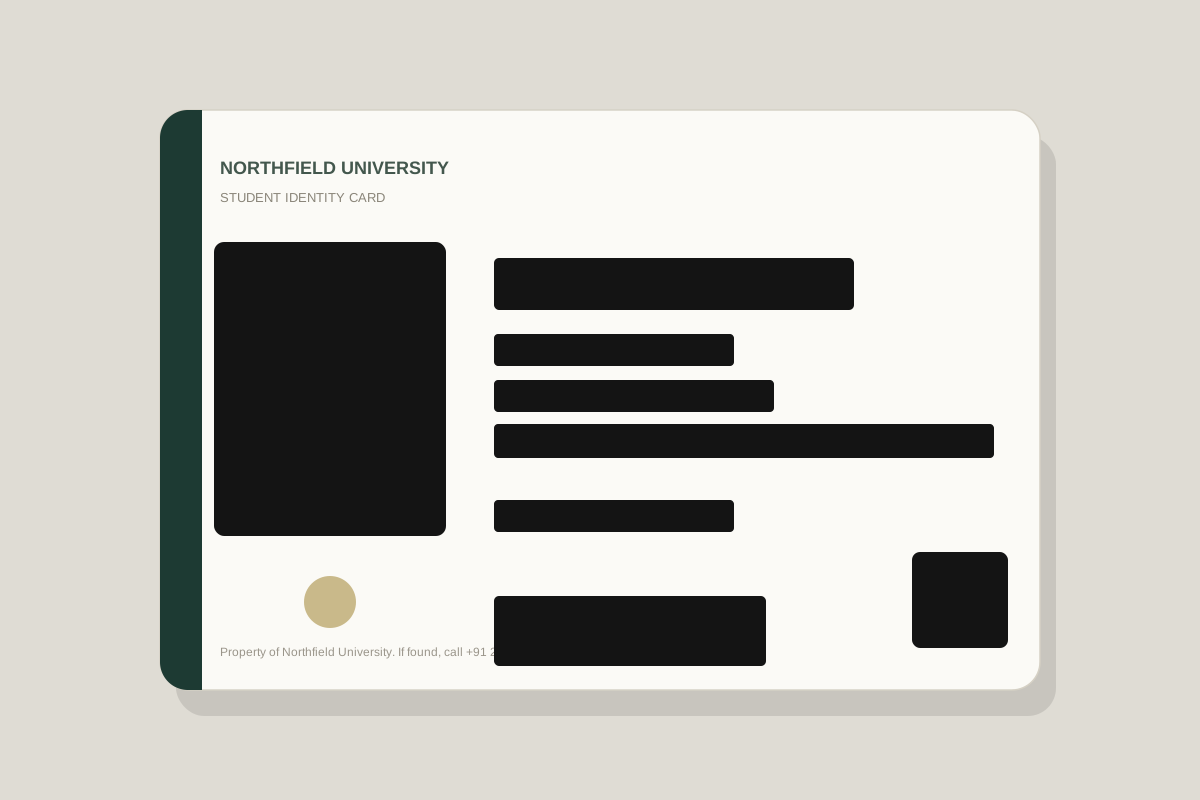
Solid pixels replace the photo, name, ID number, address, barcode and QR code. There is nothing behind the bar to read.
The right default for card numbers, IDs, addresses and anything financial.
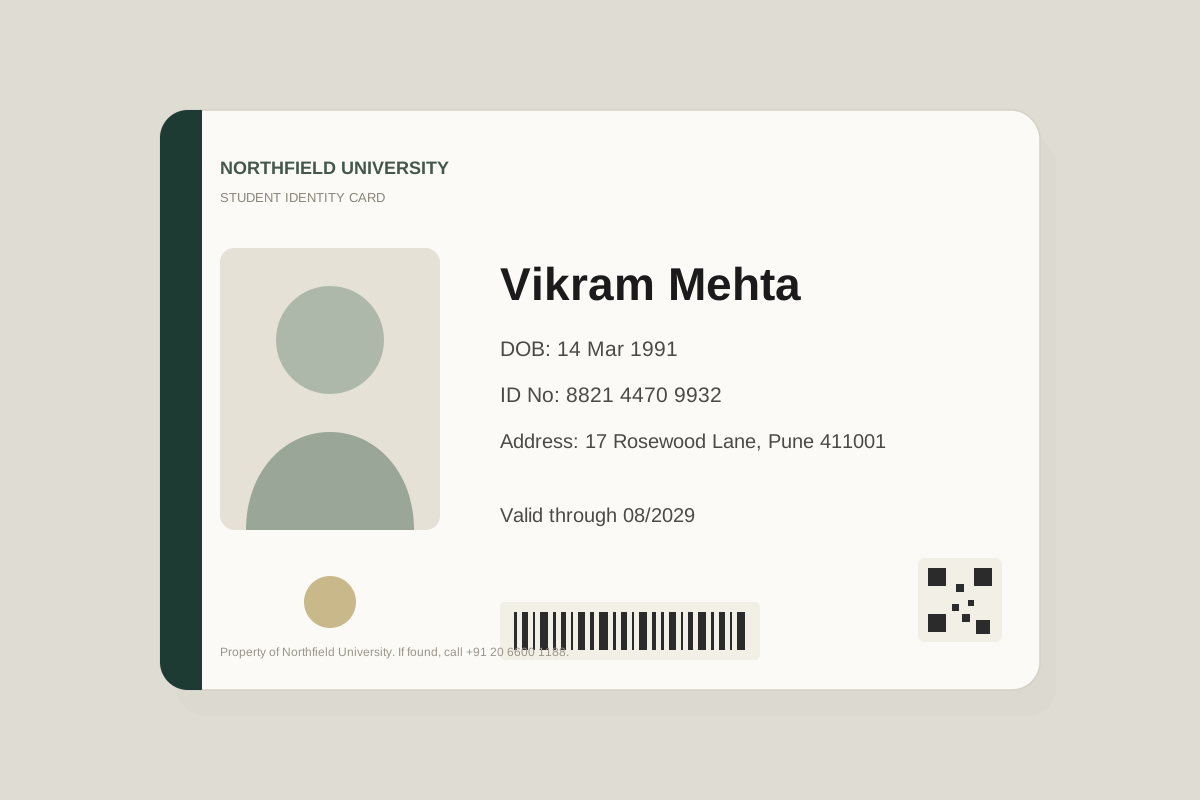
What people hide
The obvious secret is rarely the only one. Pick the kind of image you are about to share and see what usually needs covering.
Names, emails, phone numbers, and delivery details tucked into message bubbles.
Photos, dates of birth, ID numbers, addresses, and machine-readable codes.
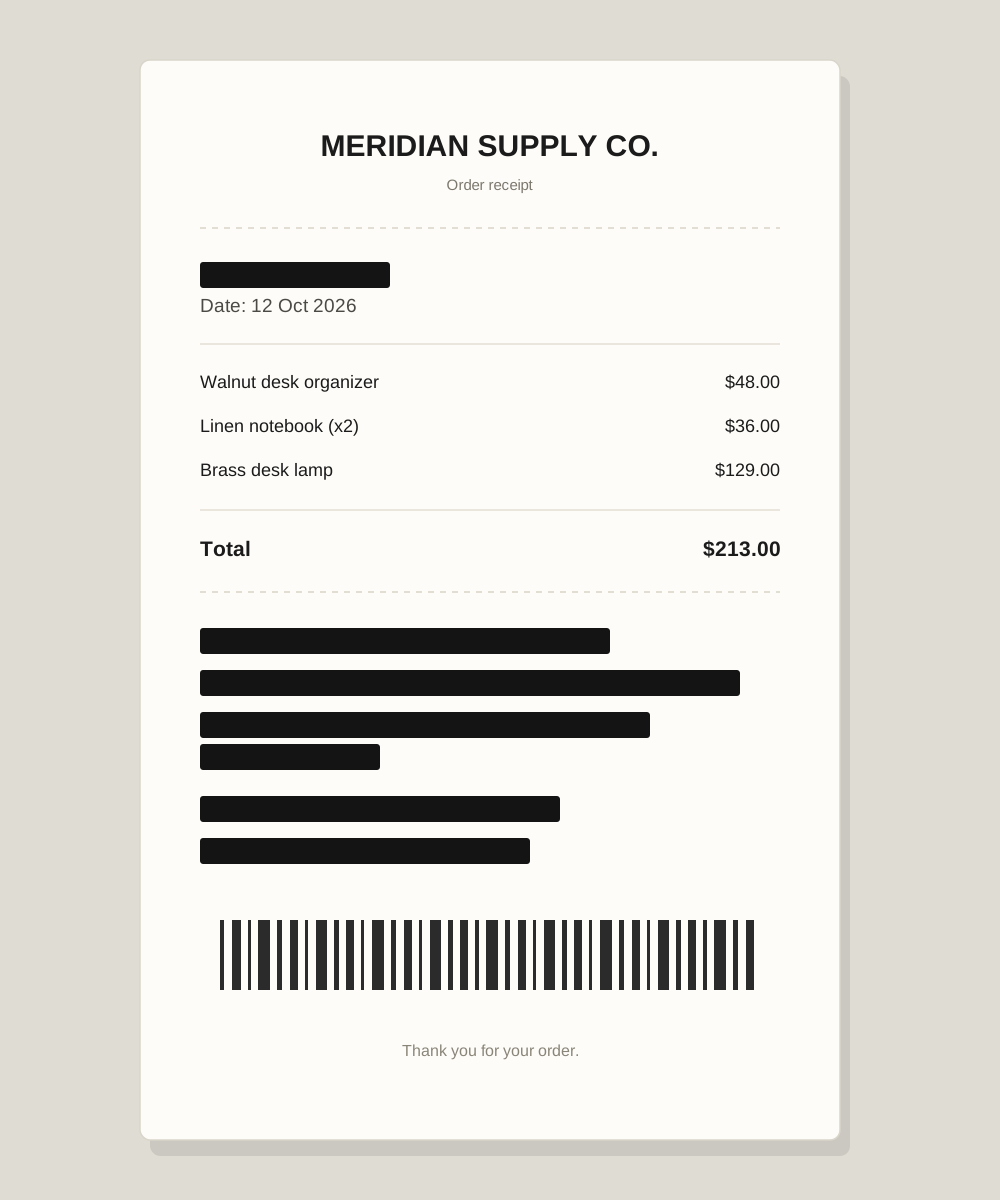
Card details, billing emails, order numbers, tax IDs, and support contacts.
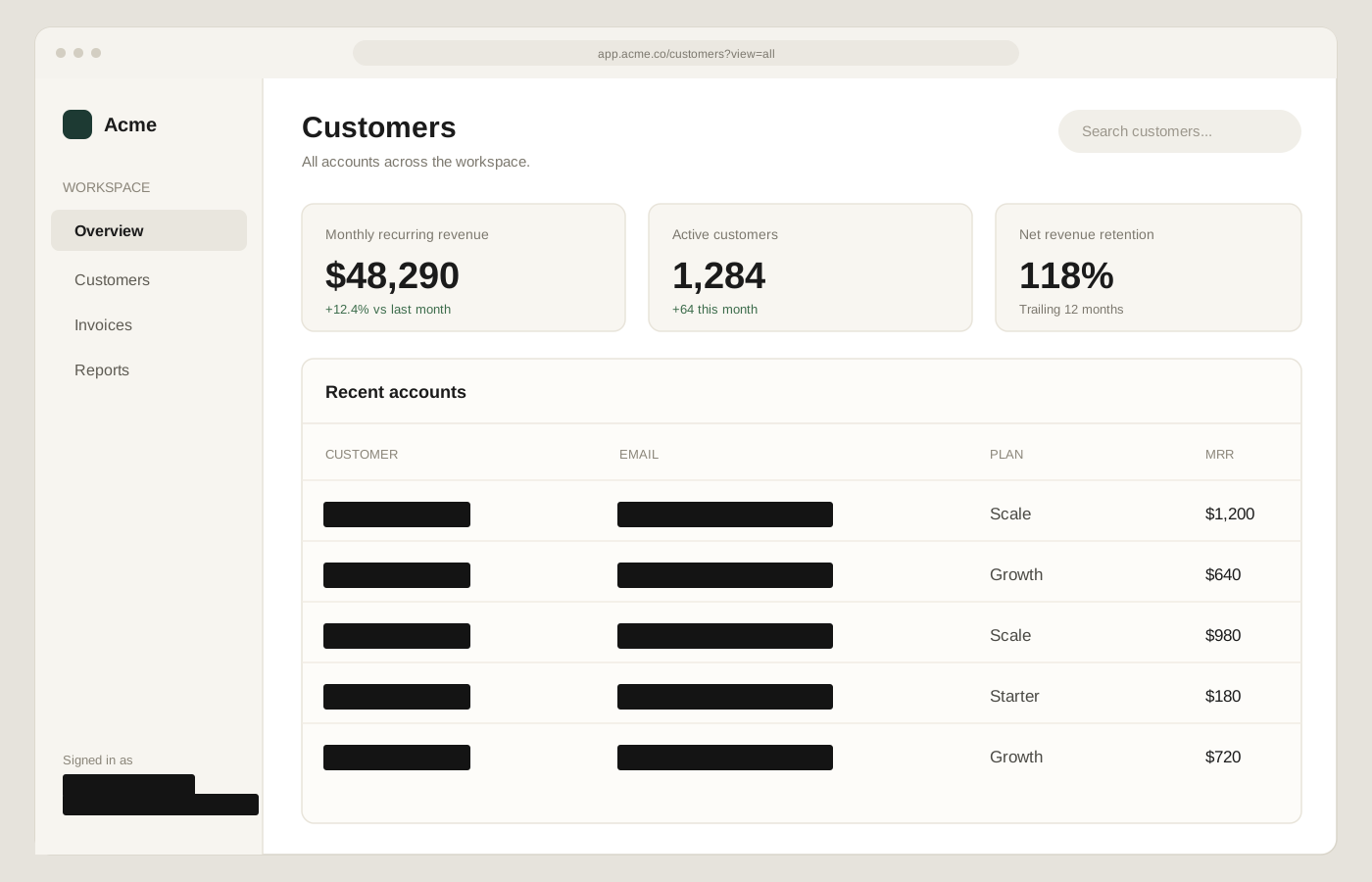
Signed-in accounts, customer tables, revenue figures, and internal URLs.
Smart detection
Smart detection reads the text already visible in your screenshot and suggests the lines that look like identifiers. It runs in a Web Worker on your device, so the image never leaves the page.
First use downloads the OCR engine and English model. The image is not part of that request.
Redaction styles
Match the cover to the risk. The soft effects look better; the black box is the one to trust with money and identity.
The right default for card numbers, IDs, addresses and anything financial.
Fine for casual screenshots where a softer look fits.
Fine for faces and context, never the first choice for secrets.
Friendly on a face, still fully covered.
Blur and pixelation can sometimes be partially reversed. For identity documents, card numbers, and addresses, use ink black — and run Verify before you share.
Privacy by architecture
This is not a promise to delete your file after processing. The file is never sent in the first place. You can confirm it in the network tab.
Your browser does the work
The file is decoded into a canvas in this tab. There is no upload endpoint to send it to.
Exports are new images
Canvas re-encoding leaves the original EXIF, GPS coordinates, and device details behind.
The one request is disclosed
Smart detection downloads Tesseract.js and an English model on first use. Your image is never part of that request. Manual redaction works without it.
Compare
Categories, not specific products. The useful comparison is not the feature list — it is where your image goes.
| Capability | RedactThis site | Typical web tool | Desktop app |
|---|---|---|---|
| Image leaves your deviceNo upload endpoint exists in the editor. | Never | Often uploaded | No |
| On-device sensitive-text detection | Yes, OCR in the browser | Rare | Seldom |
| Cover every detected line | All text mode | Rare | Varies |
| Redaction styles | Ink, pixelate, blur, emoji | Usually blur or mosaic | Varies |
| Rectangle and oval selections | Both | Varies | Varies |
| Move, resize, and undo | Yes | Varies | Yes |
| Re-scan the flattened result | Yes, best-effort OCR | No | No |
| EXIF, GPS, and device metadata | Removed on export | Varies | Varies |
| Export size reductionQuality and longest-edge controls, measured before download. | Yes, with a live estimate | Rare | Sometimes |
| Account required | No | Sometimes | Often |
| Price | Free | Free or paid | Paid |
| Offline editing after load | Yes | No | Yes |
| Batch queue | Not yet | Varies | Sometimes |
Image leaves your device
No upload endpoint exists in the editor.
This site
Never
Web tool
Often uploaded
Desktop
No
On-device sensitive-text detection
This site
Yes, OCR in the browser
Web tool
Rare
Desktop
Seldom
Cover every detected line
This site
All text mode
Web tool
Rare
Desktop
Varies
Redaction styles
This site
Ink, pixelate, blur, emoji
Web tool
Usually blur or mosaic
Desktop
Varies
Rectangle and oval selections
This site
Both
Web tool
Varies
Desktop
Varies
Move, resize, and undo
This site
Yes
Web tool
Varies
Desktop
Yes
Re-scan the flattened result
This site
Yes, best-effort OCR
Web tool
No
Desktop
No
EXIF, GPS, and device metadata
This site
Removed on export
Web tool
Varies
Desktop
Varies
Export size reduction
Quality and longest-edge controls, measured before download.
This site
Yes, with a live estimate
Web tool
Rare
Desktop
Sometimes
Account required
This site
No
Web tool
Sometimes
Desktop
Often
Price
This site
Free
Web tool
Free or paid
Desktop
Paid
Offline editing after load
This site
Yes
Web tool
No
Desktop
Yes
Batch queue
This site
Not yet
Web tool
Varies
Desktop
Sometimes
Categories, not specific products. Features vary by tool, plan, and version.
Verify anything that matters before you rely on it.
How it works
Open the page, work on the image, take the file. That is the whole flow.
PNG, JPG, WebP, GIF, BMP, or AVIF. It opens locally — not on a server.
Run Smart detect, then move, resize, or draw boxes. Use ink, pixelate, blur, or a sticker.
Re-scan the flattened result, then export PNG, JPG, or WebP with no metadata — and shrink it if the file is too heavy.
Image redaction
What a good tool removes, how on-device detection helps, and where each style stops.
Image redaction is the work of permanently removing or covering sensitive details in a picture before it is shared. A good image redaction tool does three things: it finds the information that matters, covers it in a way that cannot be peeled back, and leaves no hidden data in the exported file. This page explains how image redaction works in this editor, what the on-device detection can and cannot see, and the checks worth making before an image leaves your hands.
Redaction is not decoration. A black bar, a pixelated block, a blur, and a crop all change an image, but only some of them remove the information underneath. The test is simple: after export, the covered detail should not be readable, recoverable, or inferable from what remains. If a name, email address, card number, ID number, address, date of birth, barcode, or account handle can still be read — or reconstructed from the pixels — the image is not redacted yet.
That distinction matters because screenshots are full of combinations. A name on its own may be public. The same name beside a postcode, an order number, and the last four digits of a card is a package that can unlock an account or support a payment. Cover what identifies a person, grants access, or proves a transaction, and treat any two of those details together as more sensitive than either one alone.
A screenshot records the whole frame, not the part you meant to capture. Browser tabs, the URL bar, notification banners, a signed-in account chip, an avatar, a workspace name, a timestamp, and the file name in a window title all travel with the image. The detail you noticed first is rarely the only one worth covering.
Image files can also carry metadata: EXIF fields, GPS coordinates, camera and device details, and the original file name. Screenshots hold less of it than camera photos, but assume anything the recipient does not need should not leave with the file. This editor exports a newly encoded image from a canvas, so the original metadata stays behind.
The detection in this image redaction software is OCR plus pattern checks, not a generative model guessing at faces. Tesseract reads the text already visible in the image inside a Web Worker, then the editor looks for emails, Luhn-valid card numbers, phone numbers, SSNs, Aadhaar numbers, PANs, GSTINs, IBANs, IP addresses, dates, address keywords, and short capitalised lines that look like names. Every match arrives as a suggestion you can keep or dismiss.
AI image redaction software is useful as a first pass, not a final authority. The scan can miss a face, a QR code, a barcode, a logo, or an unusual name, and it cannot know which details are sensitive in your context. Use it to stop hunting line by line, then review the frame yourself. All text mode covers every detected line when a busy screenshot makes individual judgement calls feel like a gamble.
Most image redaction online tools ask you to send the file to a server, wait for it to come back, and trust that the copy was deleted. This one is built the other way around. The browser decodes the image into a canvas in the current tab, keeps the pixels in memory, and draws every redaction locally. There is no upload endpoint, so there is no server copy to delete. The privacy page documents every request the site makes.
One request worth knowing about is smart detection. On first use, the page downloads Tesseract.js and an English language model. Your image is not part of that request. Manual redaction, undo, copy, and export work without it, and once the page has loaded you can keep editing offline.
Ink black draws an opaque, flattened shape over the original pixels. There is no gradient to reverse and no pattern to analyse, which is why it is the default for IDs, payment details, addresses, and anything that grants access to an account. Pixelate replaces an area with averaged colour blocks; it can look decisive while preserving the shape of large letters. Blur is the softest option and the weakest guarantee, because lightly blurred or pixelated text and faces can sometimes be partially reconstructed.
The emoji sticker draws an opaque plate before the emoji, so it covers the area instead of floating transparently over it. It suits a face in a casual group chat. Cropping is the strongest redaction of all when the surrounding context is not needed: a crop cannot be unblurred. For anything that identifies a person, moves money, or opens an account, reach for ink or a crop. Save the softer effects for context you would not mind losing.
The feature list matters less than the boundary around it. A tool worth using should work on the file locally, keep every box editable until you export, flatten the result into new pixels, and verify its own output before you download. It should also be honest about where detection stops instead of implying that a scan is a guarantee.
Those principles are the reason this editor works the way it does:
The useful question is not how many formats a tool lists. It is whether the file, the pixels, and the metadata all end up where you expect.
Before the image leaves your hands, make one slow pass over the whole frame. These checks catch most of the expensive mistakes:
Receipts, IDs, work dashboards, and chat screenshots each have their own guide. The short version is always the same: cover what identifies, verify what remains, and send the smallest image that still makes your point.
Guides
Short, practical notes on what to cover, which style to use, and how to check your own work.
Screenshots7 min read
One overlooked detail in the corner of a screenshot can undo a careful redaction. Use this repeatable pass to catch the bits people usually miss.
Read guideChoosing a style6 min read
Blur feels private, but it is not a guarantee. Here is how the four redaction styles compare, and when each one is appropriate.
Read guideReceipts & banking5 min read
Receipts carry more identity data than most people expect. Cover these fields before the image reaches a chat, an expense tool, or a support inbox.
Read guideImage redaction FAQ
If something is missing, ask. The answer will be added here rather than buried in a support inbox.
Ask a questionReady when you are
Open the editor, drop an image, and take a minute to cover what should not travel with it. No account, no upload, no watermark.
Free · No account · Nothing uploaded