Smart PII detection
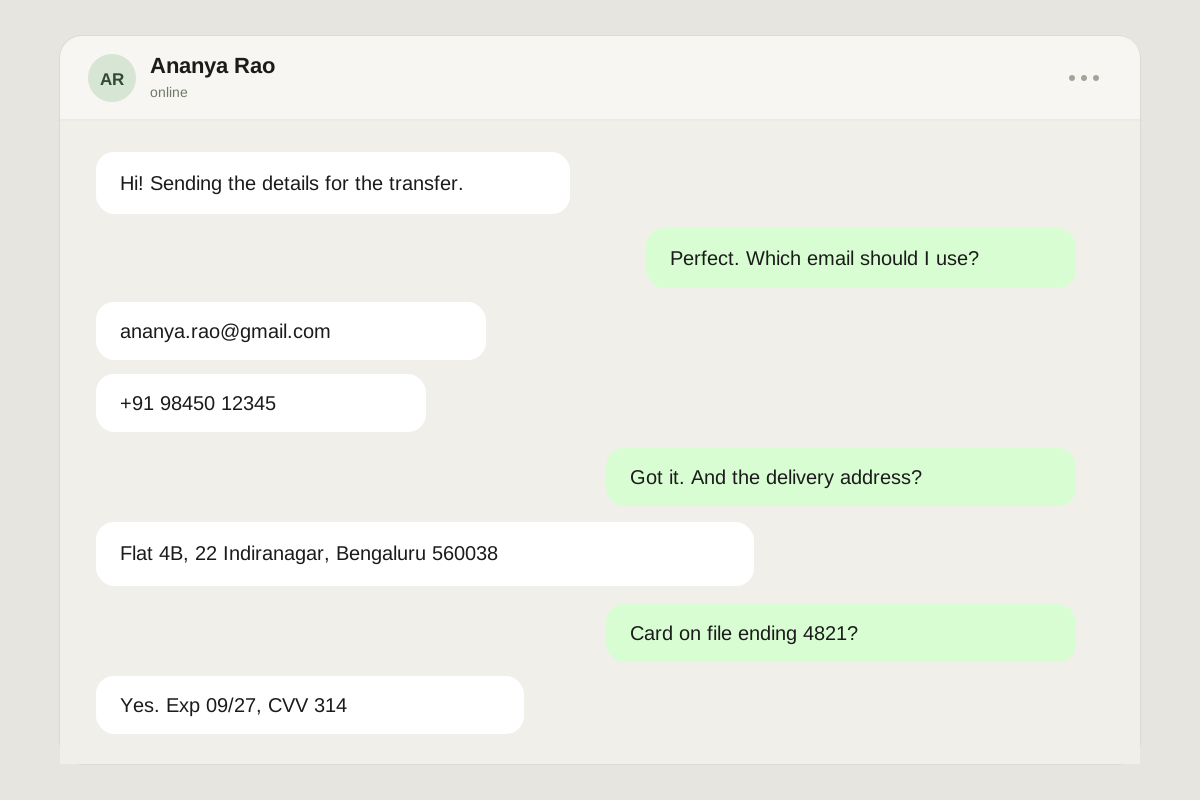
OCR finds emails, card numbers, phones, IDs, addresses, and likely names — on your device.
Features
Everything you need to remove sensitive details from a screenshot — plus the checks most tools skip, and an honest account of what still needs a human eye.
OCR finds emails, card numbers, phones, IDs, addresses, and likely names — on your device.
Cover every detected line when you would rather not make a judgement call about each one.
Opaque ink, pixelate, blur, or an emoji sticker. Use rectangles or ovals.
Nudge a box or drag a corner until it covers the edges. Undo and redo are a keystroke away.
Run OCR on the flattened result and flag anything that still reads as sensitive.
Download PNG, JPG, or WebP — or copy to the clipboard. Metadata stays behind, and the file can be shrunk before you send it.
Detection
Smart detection reads the screenshot with Tesseract OCR in a Web Worker, then checks each line against patterns for common identifiers. The image is passed to the worker inside the page; it is never part of a network request.
What it looks for
Emails, Luhn-valid cards, SSNs, Aadhaar, PAN, GSTIN, IBAN, phone numbers, IP addresses, dates, address keywords, and likely names.
What you control
Every box is included by default only when it matches. Click any box to exclude it, or use All text to cover every line.
Styles
Ink is the default for a reason. The softer effects are useful when the detail is context rather than identity.
The right default for card numbers, IDs, addresses and anything financial.
Fine for casual screenshots where a softer look fits.
Fine for faces and context, never the first choice for secrets.
Friendly on a face, still fully covered.
Blur and pixelation can sometimes be partially reversed. For identity documents, card numbers, and addresses, use ink black — and run Verify before you share.
Review
A redaction is easy to get almost right. Verify re-scans the flattened image for readable PII. Compare flips back to the original so you can see exactly what changed. Undo is there when you spot a mistake.
Verify the result, not the preview
The re-scan runs on the rendered output, so it sees what the exported file will contain.
Compare without losing your work
Toggle the original on and off. Your boxes and history stay intact.
Undo the whole history
Drawing, moving, resizing, and clearing all join the same undo stack.
No readable PII found
The flattened image was re-scanned. Give it a final visual check anyway.
Best-effort OCR. A clean scan is evidence, not a guarantee.
Delivery
A redacted screenshot is often still too heavy for a chat, a ticket, or an email. The Size panel measures the real export in your browser: lower the quality for JPG and WebP, cap the longest edge, and read the actual byte count before you download anything.
A live estimate, not a guess
The panel encodes the export in your tab and reports the real file size and the percentage saved against the full-size version.
Cap the longest edge
Rescale the flattened result to 2560, 1920, 1280, or 960 px. The scene is scaled as a whole, so every redaction lands exactly where you drew it.
Honest about PNG
PNG is lossless, so the quality slider is switched off for it. Use the size cap instead — or pick WebP, which is usually far lighter for screenshots.
Applies to JPG and WebP exports. PNG stays lossless.
Rescales the flattened result. Redactions stay baked in.
212 KB · 1920 × 1080
−86% vs 1.5 MB at full size
Proof
The after image is baked, not layered. Drag the handle and inspect the edge of every bar. If anything is still readable, it is not redacted.
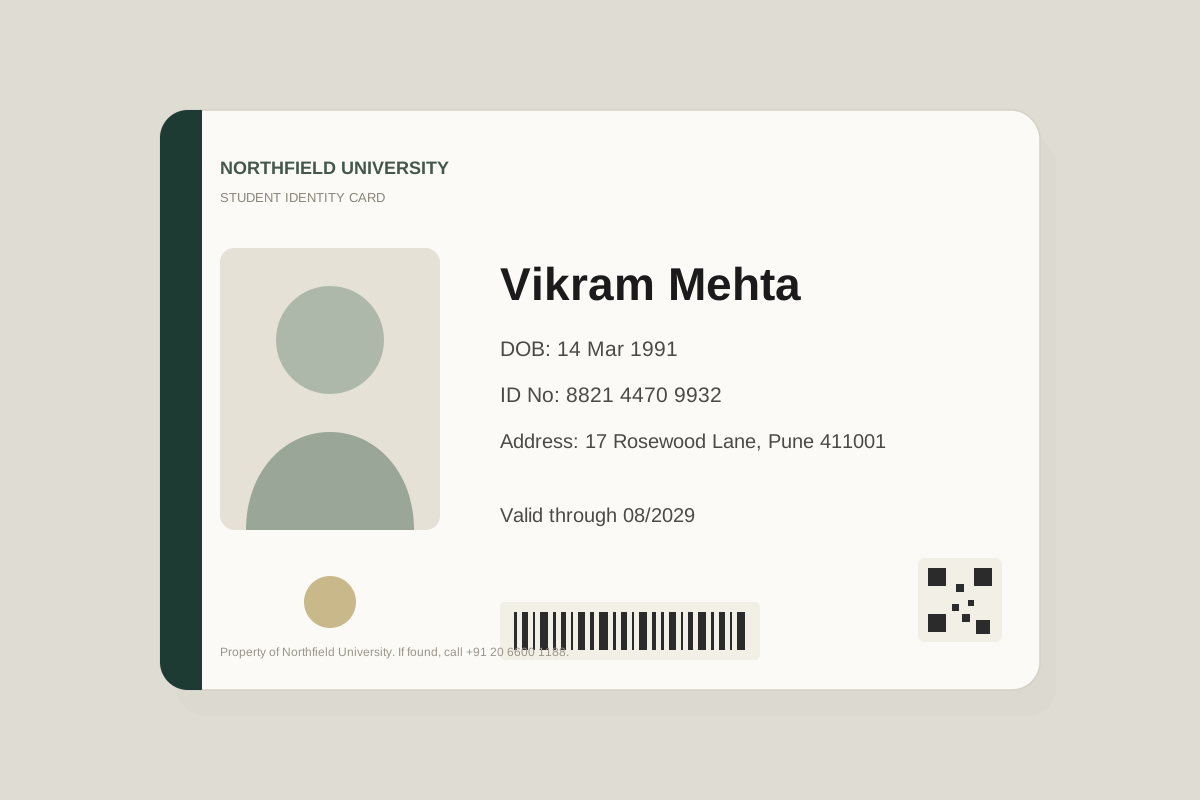
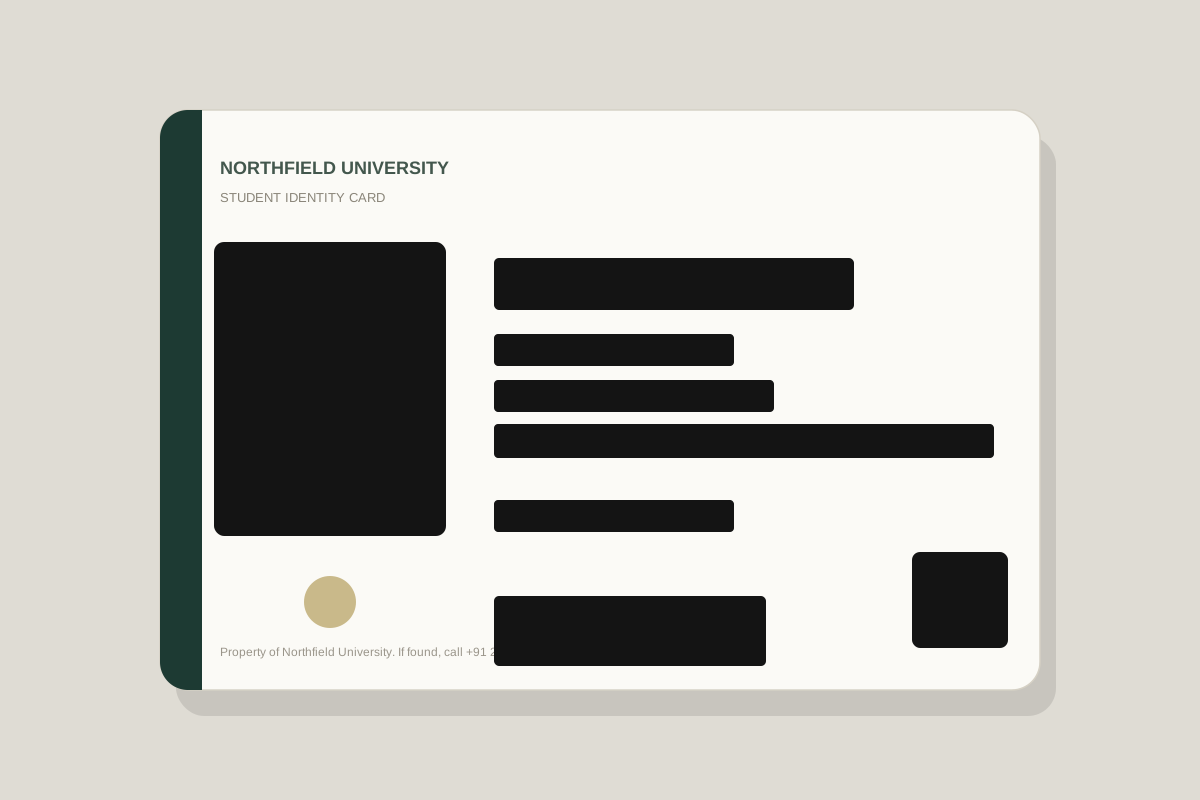
Drag the handle to compare.Flattened pixels, not a removable layer
Speed
Paste an image from the clipboard, drop one onto the editor, or replace the current file without reloading. Then switch tools and undo without reaching for the mouse.
Honest limits
A redaction tool should be clear about its blind spots. These are the ones worth knowing before you rely on the output.
Faces, QR codes, barcodes, MRZs, and logos are not detected yet. Draw a box over each one — and check both sides of an ID.
Names use a pattern for short, capitalised lines. Unusual names, lowercase handles, and stylised text can slip through.
There is no batch queue yet. Replace the image and repeat; each export is independent and metadata-free.
You cannot add a “for Acme only” label inside the editor. Add context with a separate markup tool, away from the redacted area.
No automated check can replace a final look at the exported image. When in doubt, use ink and crop more.
Ready when you are
Smart detection saves the first pass. Ink, Verify, and a final look at 100% save the last one.
Free · No account · Nothing uploaded