Receipts & banking5 min read
How to redact a receipt before you expense it
Receipts carry more identity data than most people expect. Cover these fields before the image reaches a chat, an expense tool, or a support inbox.
Published
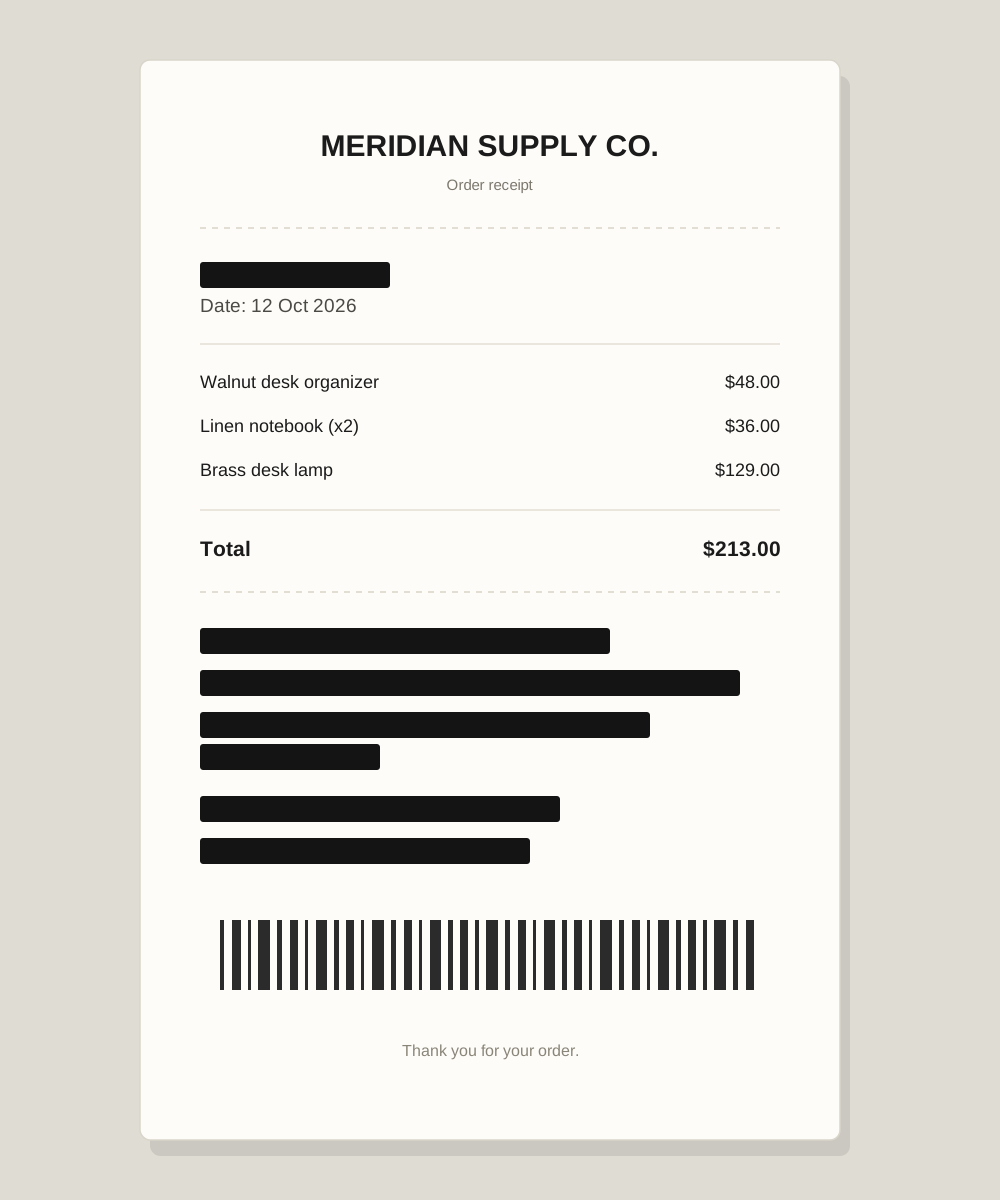
A receipt proves a purchase. It does not have to prove who you are, where you live, or which card you used. Yet most receipts print all of that by default.
Expense reports, warranty claims, and support tickets all ask for a receipt image. Before you attach one, decide which fields the recipient actually needs. Usually it is the merchant, the date, the line items, and the total. Everything else is optional.
The fields that matter
- Your full name, billing email, and shipping address.
- Card brand, last four digits, expiry date, and any printed CVV.
- Order, invoice, and customer numbers.
- Tax IDs such as a GSTIN, VAT number, or business registration number.
- Barcodes and QR codes, which often encode the order and customer record.
- Support phone numbers and staff names.
- Signatures and handwritten notes.
If the expense tool only needs the merchant, date, total, and line items, crop to those. A receipt does not need a name and address to prove a purchase.
Redact in this order
- 1
Crop out the margins
Remove anything the recipient does not need: the address block, the payment section, or the barcode strip.
- 2
Cover payment details
Use ink black over the card number, expiry, CVV, and bank name. If the last four digits are not needed, cover them too.
- 3
Cover identity fields
Name, email, phone, address, tax ID, and signature. Use one box per field so it is easy to review.
- 4
Deal with the barcode
Cover the barcode and QR code completely, including the quiet zone around them. A partial barcode can still be readable.
- 5
Verify and export
Run Verify, zoom into the result, and download a new image. The export carries no original metadata.
Do not forget the barcode
A barcode can hold an order ID, a customer number, or a loyalty account. Because it does not look like text, it is easy to leave untouched. Treat any machine-readable pattern on a receipt as sensitive by default.
Expense tools, support tickets, and group chats
The channel changes the risk. A receipt sent to a work expense tool may be visible to an administrator. A receipt posted in a group chat may be forwarded. A support agent usually needs less than the full page. Send the smallest image that answers the question.
Final check
- No card number, expiry date, or CVV is visible.
- Your name, email, phone, and address are covered or cropped out.
- The barcode and QR code are fully hidden.
- The order number and tax ID are covered if they are not needed.
- The exported file has been opened and checked at full size.
The short version
- Crop to the merchant, date, total, and line items when you can.
- Cover payment details, identity fields, and barcodes with ink.
- Send the smallest receipt that still answers the question.
Put it into practice with a sample image.