Screenshots7 min read
How to redact a screenshot without missing anything
One overlooked detail in the corner of a screenshot can undo a careful redaction. Use this repeatable pass to catch the bits people usually miss.
Published
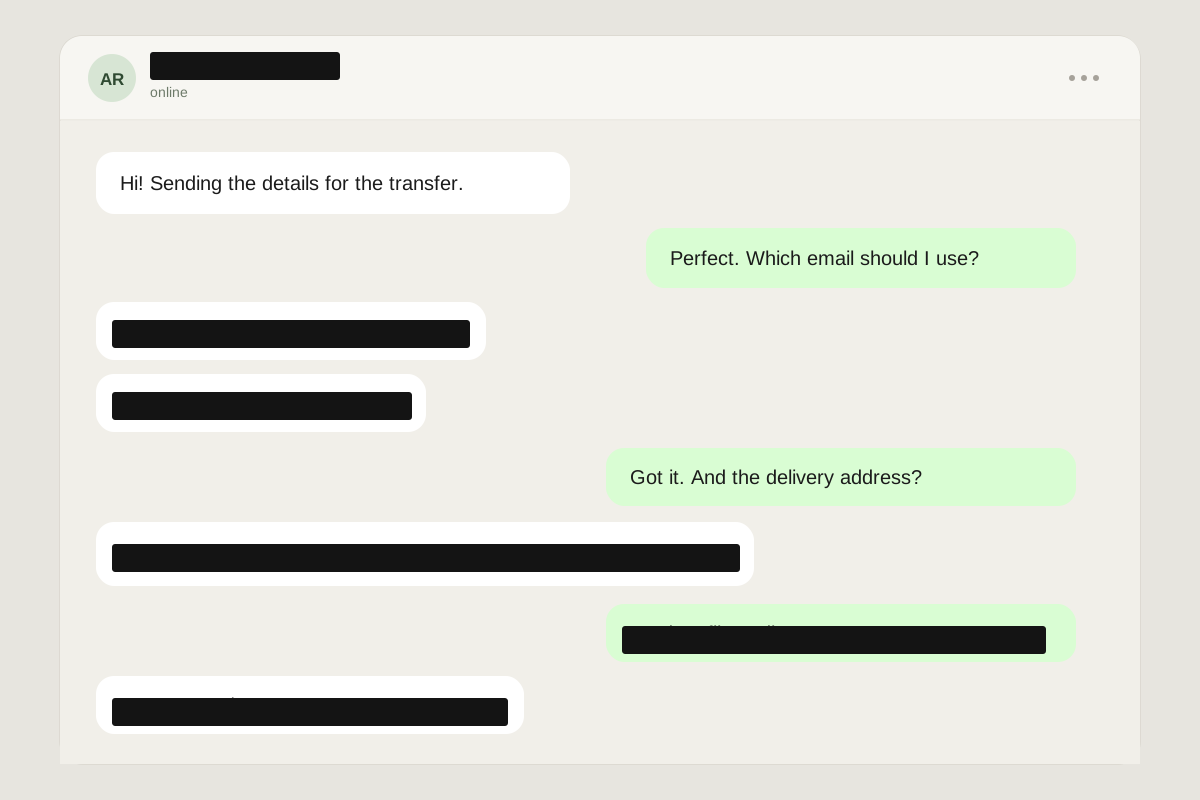
Most redaction mistakes are not caused by the black box. They are caused by everything around it — the name in the header, the email in a notification, the order number under the barcode.
A screenshot is a recording of a whole interface, not just the part you meant to capture. The safe approach is to treat the entire frame as untrusted until you have looked at it deliberately, one region at a time.
Start with the whole frame, not the obvious secret
Before you draw a single box, scan the image in a Z shape: top-left to top-right, down, then back across. The thing you noticed first is rarely the only thing worth hiding.
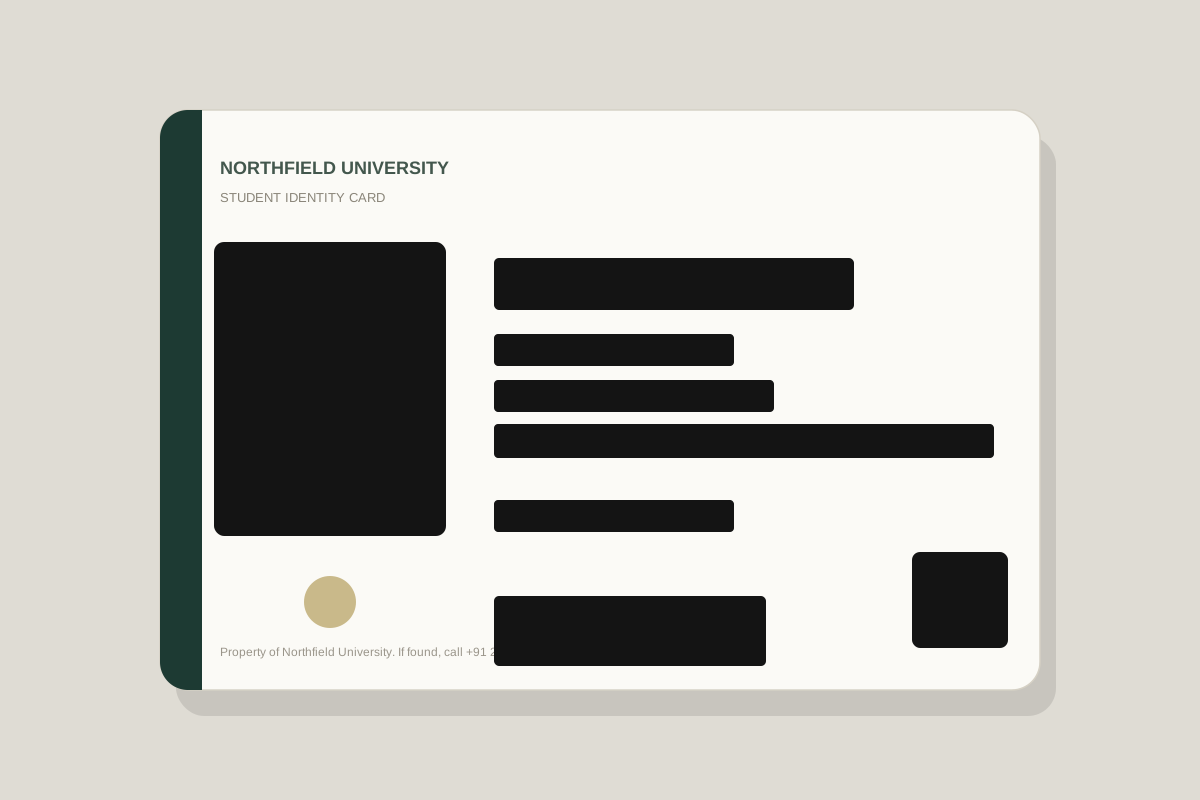
- Display names, usernames, handles, avatars, and profile photos.
- Email addresses, phone numbers, and account IDs inside message bubbles.
- Addresses, delivery instructions, and dates of birth.
- Card numbers, expiry dates, CVVs, and bank names.
- Browser tabs, bookmarks, and the URL bar.
- Notification banners and message previews.
- File names, window titles, and app sidebars.
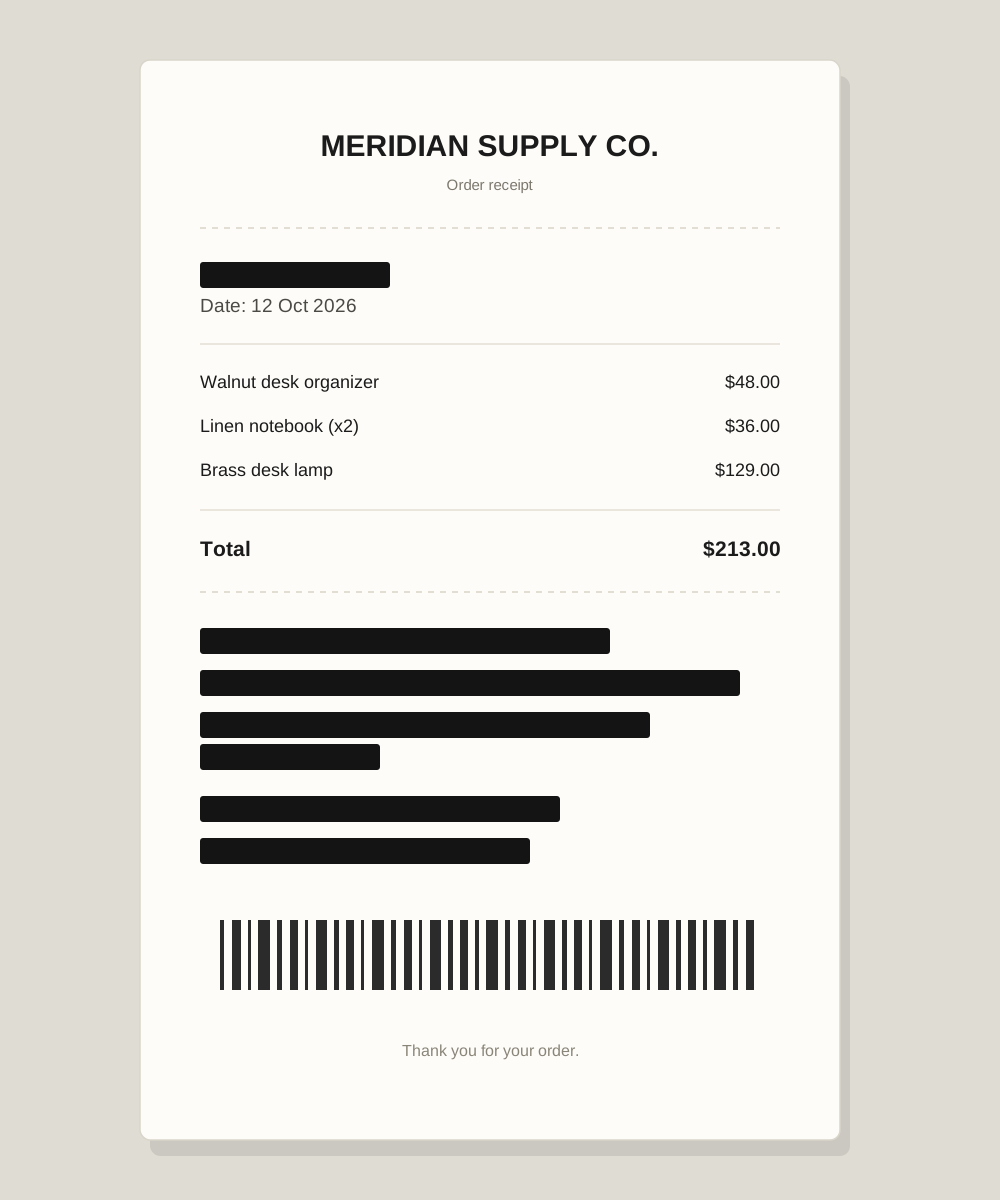
- Barcodes, QR codes, order numbers, and invoice numbers.
When you can, screenshot the app window alone instead of the whole desktop. Cropping is the most reliable redaction there is: fewer pixels means fewer chances to miss something.
Cover identities, not just faces
A face is not the only identifier. An email address can be enough to target someone. A card ending and an expiry date can support a fraudulent payment. An order number plus a postcode can unlock a support account. Think in combinations: which two details together would let a stranger do something?
Use ink for anything that matters
Ink black is an opaque fill. It leaves no recoverable pixels underneath. Blur and pixelation are useful for context, but they can sometimes be partially reversed, especially when the text is large or the effect is light. For IDs, payment details, addresses, and account access, reach for ink first.
Do a verification pass
The editor’s Verify button renders your redacted image and runs OCR on the flattened result. It looks for text that still matches an email, card, phone, ID, address, or date pattern. If something comes back, add another box and verify again. The check is best-effort, not a guarantee — a final human look still matters.
- 1
Load the image
Drop it, paste it, or start with a sample. The file is decoded by your browser.
- 2
Run Smart detect
OCR suggests lines that look sensitive. Click any suggestion to exclude it. Use All text if you would rather cover every line.
- 3
Fix the edges
Drag boxes over anything the scan missed. Use ink for identifiers, and crop if a large area is private.
- 4
Verify, then export
Re-scan the flattened image, review the preview once more, then download a metadata-free PNG, JPG, or WebP.
A 20-second final check
- Squint at the preview. Does any text peek out from behind a box?
- Check all four corners, not only the centre of the image.
- Open the exported file at full size before you send it.
- Ask whether the recipient needs the whole image. A crop is safer than a redaction.
The safest screenshot is the one with less in it. Redact what you must, crop what you can, and send the smallest version that still does the job.
The short version
- Scan the whole frame, including headers, tabs, and notifications.
- Use ink black for identifiers and payment details.
- Verify the flattened image and check the export at full size.
Put it into practice with a sample image.